
Gaming sessions often stretch for hours. Your body pays the price when your setup isn't optimized. Poor ergonomics leads to neck pain, wrist strain, and back problems that affect both comfort and reaction times. Smart workspace design can prevent these issues while improving your gameplay. Let's explore practical adjustments that keep you comfortable during marathon sessions.
1. Fix Your Posture for Better Aim
Slouching forward seems natural when you're focused on a clutch moment. Your shoulders round, your neck cranes toward the screen, and your spine curves like a question mark. This position restricts blood flow and oxygen to your muscles.
Reduced circulation means slower reflexes. Your arms fatigue faster when your shoulders aren't properly aligned. The forward head position adds pounds of pressure to your cervical spine. Over time, this creates chronic tension that distracts you from gameplay.
Poor posture also compresses your diaphragm. Shallow breathing reduces oxygen to your brain. Your decision-making suffers when you're not getting enough air. Competitive players need every advantage, and proper posture provides one.
The 90-90-90 Rule
This rule creates optimal angles throughout your body. Your elbows should bend at 90 degrees when your hands rest on your keyboard or controller. Your knees form 90-degree angles with your feet flat on the floor. Your hips also sit at 90 degrees with your back against the chair.
These angles promote neutral spine alignment. Your weight distributes evenly across your sitting bones. Pressure points don't develop when you maintain these positions. Blood flows freely to your extremities.
Adjust your chair height first. Your feet should touch the ground without dangling. Next, position your armrests so your shoulders relax downward. Your wrists should float level with your desk surface. This prevents the upward or downward bending that causes carpal tunnel symptoms.

2. Optimize Your Desk Layout
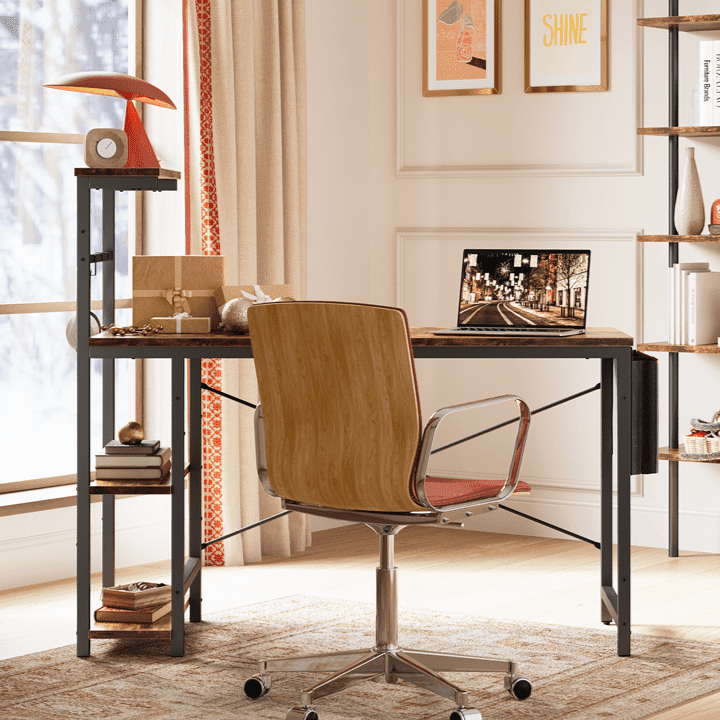
Your desk is your command center. Layout matters as much as equipment quality. The right surface provides space, support, and functionality that keeps you comfortable through extended play.
L Shaped Gaming Desk
An L shaped gaming desk provides extended surface area for multiple monitors and peripherals. The corner section creates a natural alcove that surrounds you with controls. This configuration supports your forearms along two surfaces, reducing shoulder strain during long sessions.
The perpendicular sections let you separate different activity zones. Place your main gaming area on one side and secondary tasks like streaming controls on the other. Your arms rest naturally whether you're typing, mousing, or reaching for your drink.
Corner Gaming Desk
Corner gaming desks fit snugly into room angles. This placement maximizes floor space while giving you wraparound work area. Your mouse hand gets full range of motion without hitting edges.
The angled design brings everything within easy reach. You won't need to stretch or twist to access peripherals. This compact footprint works especially well in smaller rooms where a traditional gaming L shaped desk might overwhelm the space.
Arm Support Features
Proper arm support prevents fatigue and pain. Here's what matters:
| Feature | Benefit |
| Extended surface depth | Full forearm resting from elbow to wrist |
| Rounded corners | No sharp edges digging into arms |
| Appropriate height | Arms parallel to floor at 90-degree bend |
| Sufficient width | Mouse movement without repositioning |
Cable management keeps your surface clear. Tangled wires create obstacles that disrupt arm positioning. Mount power strips underneath or use cable channels along the back edge.
3. Position Your Monitor Correctly
Your monitor placement directly affects neck strain. Proper positioning prevents tech neck while maintaining clear visibility. Small adjustments make significant differences in long-term comfort.
Height Alignment
The top of your screen should align with or slightly below eye level. This position lets you look straight ahead or slightly downward. Looking upward for extended periods strains neck muscles.
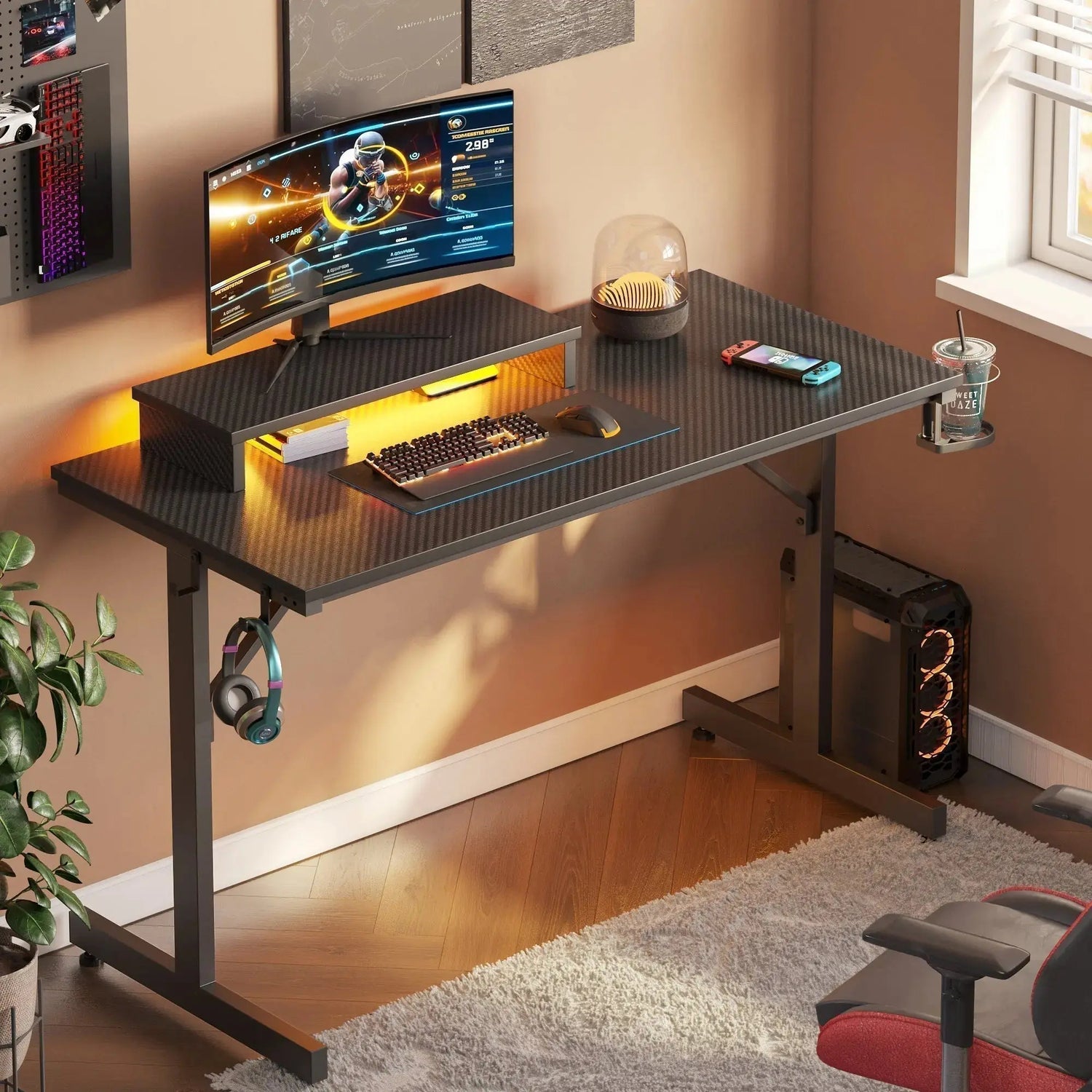
A gaming desk with monitor stand elevates screens to proper height without sacrificing desk space. The stand also creates storage underneath for keyboards or controllers. This dual function maximizes your surface area.
Viewing Distance
Sit an arm's length away from your display. Extend your arm fully and your fingertips should nearly touch the screen. This spacing reduces eye strain while keeping text readable.
Larger monitors may require slightly more distance. The goal is seeing your entire screen without moving your head. Your eyes should track movement naturally across the display.
Multiple Monitor Arrangement
Position your primary display directly in front. Secondary screens angle slightly inward to reduce head turning. This creates a gentle curve around your viewing position.
Laptop gamers face unique challenges. Built-in screens sit too low. Use a laptop stand with external keyboard and mouse. This creates proper viewing angles while maintaining comfortable hand positions.

4. Balance Your Lighting Setup
Darkness surrounding a bright screen forces your pupils to constantly adjust. This creates eye fatigue and headaches. Ambient lighting balances the contrast between your display and environment.
Gaming Desk With LED Lights
A gaming desk with LED lights provides built-in balance. The glow behind your monitor reduces harsh brightness differences. Your eyes relax when the surrounding area has soft illumination. This isn't just aesthetic appeal but functional eye care.
Position affects effectiveness. Lights should face away from your eyes, either downward or backward. Direct LED beams create new glare problems instead of solving them.
RGB Gaming Desk Options
An RGB gaming desk offers customizable color temperatures. Blue tones energize during competitive play. Warmer colors reduce strain during late-night sessions. Adjust brightness to match your screen levels without creating glare.
Change settings based on game type. Fast-paced shooters benefit from cooler, brighter tones that enhance alertness. Story-driven games work better with warm, dimmer lighting that creates atmosphere.
Bias Lighting Techniques
Bias lighting specifically targets the wall behind your monitor. This reflected glow expands your perceived viewing area. The effect makes your screen appear more comfortable to watch.
Position LED strips along the back edge of your desk or directly behind displays. The indirect illumination fills your peripheral vision without reflecting on your screen. Avoid overhead lights that create screen glare. Side lighting works better for gaming spaces.
5. Move Between Matches
Movement prevents stiffness between rounds. Simple stretches take seconds and preserve flexibility. Your body needs these breaks even when your mind wants to queue immediately.
Neck and Shoulder Relief
Neck rolls release tension from looking at screens. Drop your chin to your chest, then slowly roll your head to one shoulder, back, and to the other shoulder. Complete three circles in each direction.
Shoulder shrugs combat the forward hunch. Lift both shoulders toward your ears, hold for three seconds, then release. Repeat ten times. Roll your shoulders backward in large circles five times.
Wrist and Hand Exercises
Wrist exercises prevent repetitive strain. Extend your arm forward with fingers pointing up. Gently pull your fingers back with your other hand. Hold fifteen seconds, then point fingers down and pull gently. Switch hands and repeat.
Make fists and then spread your fingers wide. Repeat this ten times. The motion pumps blood through your hands and relieves cramping.
Full Body Movement
Stand up between matches. Walk around your room or do ten bodyweight squats. This flushes stagnant blood from your legs and resets your posture. Even thirty seconds of movement helps.
Eye exercises reduce digital strain. Look at something twenty feet away for twenty seconds every twenty minutes. This 20-20-20 rule relaxes your eye muscles. Blink deliberately ten times to refresh your tear film.
Invest in Your Gaming Future
Your body supports thousands of gaming hours. Treating it well now prevents problems later. Ergonomic adjustments aren't compromises. They're performance enhancements that extend your playing career. Start with one change today, whether it's desk height, monitor position, or lighting setup. Your future self will thank you when you're still gaming comfortably years from now.
FAQs About Gaming Ergonomics
Q1: How Often Should I Take Breaks During Gaming Sessions?
Stand and move every 30 to 60 minutes. Brief movement breaks prevent stiffness without interrupting your flow. Use natural pauses like matchmaking queues or loading screens.
Q2: Can Gaming Chairs Replace Proper Desk Ergonomics?
Chairs support posture but don't fix desk height or monitor placement issues. You need both a supportive chair and properly positioned equipment for complete ergonomic setup.
Q3: What Desk Height Works Best for Gaming?
Your desk should allow 90-degree elbow angles when your shoulders relax downward. This typically means 28 to 30 inches for average heights, but adjustable desks accommodate different body types.
Q4: Do LED Lights Actually Reduce Eye Strain or Just Look Cool?
Properly positioned LED lighting genuinely reduces eye fatigue by balancing screen brightness with ambient light. The visual appeal is a bonus beyond the functional benefits.
Q5: How Long Before Ergonomic Changes Improve Comfort?
Most people notice reduced strain within days of proper positioning. Chronic pain from previous poor ergonomics may take weeks to fully resolve with consistent good habits.
