

Summary
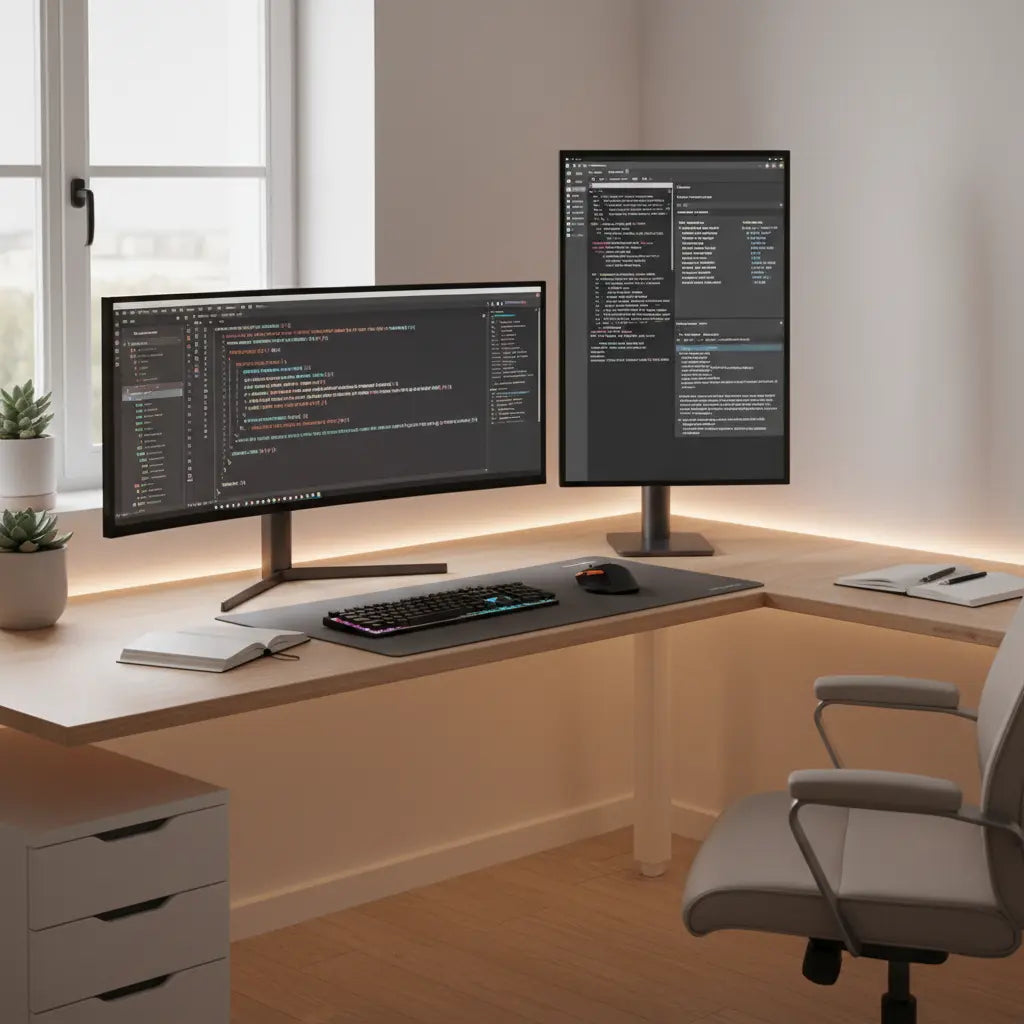
Optimizing a coding workspace with a vertical monitor on an L-shaped desk significantly increases visible lines of code and documentation accessibility while leveraging the "cockpit" ergonomics of a corner layout. For the best results in 2026, developers should prioritize desk stability and surface thickness to support the high torque of vertical VESA mounts, ensuring a flicker-free and neck-safe environment.
Key takeaways
- Enhanced Readability: Vertical orientation allows for viewing up to 3x more lines of code simultaneously, reducing the cognitive load of frequent scrolling.
- Ergonomic Alignment: Positioning the vertical monitor on the "return" side of an L-shaped desk creates a natural focal arc, minimizing neck rotation and repetitive strain.
- Stability is Critical: Vertical monitors exert higher leverage on desk clamps; look for desks with at least 0.6-inch thick surfaces and reinforced steel frames.
- Software Optimization: Utilizing window management tools like Microsoft PowerToys (FancyZones) is essential for segmenting tall screens effectively.
- Safety Standards: Ensure your desk meets CARB Phase 2 and TSCA Title VI standards for indoor air quality, especially in small home offices.
Why Developers Choose Vertical Monitor Setups for Coding
In the evolving landscape of software development in 2026, the demand for screen real estate has shifted from purely horizontal expansion to a more vertical, data-dense approach. A vertical monitor setup—often referred to as "portrait mode"—is no longer a niche preference but a strategic choice for full-stack developers, data scientists, and technical writers. The primary advantage lies in the nature of code itself: it is written and read vertically. By rotating a standard 24-inch or 27-inch monitor 90 degrees, a programmer can often view an entire class or a lengthy function without touching the scroll wheel.
This orientation is particularly beneficial when paired with an L-shaped desk. The unique geometry of an L-shaped layout allows the vertical screen to sit on the shorter "return" side, creating a dedicated zone for documentation, terminal outputs, or Slack channels. This separation of concerns—keeping the primary logic on a horizontal main screen and the "supporting cast" on the vertical screen—mirrors the mental context-switching required in modern dev-ops workflows.
Logic Summary: This recommendation assumes a dual-monitor workflow where one screen is primary (horizontal) and the second is auxiliary (vertical). It may not apply to developers who prefer a single ultra-wide display, though even ultra-wides often benefit from a secondary vertical companion for long-form reading.
Maximizing the "Cockpit" Layout with an L-Shaped Desk
The "cockpit" effect is a design principle where the user is at the center of a curved or angled workspace, making all tools reachable with minimal torso movement. An L-shaped desk is the most efficient way to achieve this in a home office. When setting up a vertical monitor, the corner of the "L" serves as the ergonomic anchor. By placing the primary horizontal monitor directly in front of the seating position and the vertical monitor slightly angled on the return, you create a seamless visual sweep.
For those looking to optimize their space, exploring Best L-Shaped Desk Setups for Dual Monitor Productivity (2026 Guide) can provide specific blueprints for different room sizes. The goal is to ensure that the vertical monitor's top edge is not significantly higher than your eye level. Because a vertical 27-inch monitor is quite tall, placing it on the lower surface of an L-shaped desk or using a low-profile VESA mount is crucial to avoid "tech neck" caused by looking upward for extended periods.

Ergonomic Standards and Eye Strain Prevention
Ergonomics in a dual-monitor setup goes beyond just chair height. According to the Occupational Safety and Health Administration (OSHA) and ISO 9241-5 standards, the ideal viewing distance should be between 20 and 40 inches from the eyes. With a vertical monitor, the bottom of the screen is often much closer to the desk surface than a horizontal one. This requires a desk with sufficient depth—at least 24 inches—to maintain the proper focal distance.
Furthermore, eye strain (digital eye strain or CVS) is a significant risk with tall screens. The human eye is naturally better at horizontal scanning than vertical scanning. To mitigate this, developers should follow the 20-20-20 rule: every 20 minutes, look at something 20 feet away for 20 seconds. Additionally, ensure your vertical monitor has a high refresh rate (at least 75Hz) and a blue light filter, as the sheer amount of white space in documentation can be taxing on the retinas.
When choosing a desk for this setup, safety extends to the materials used. It is vital to verify that your furniture complies with indoor air quality regulations. For a deep dive into these requirements, refer to the Engineered Wood Safety: A Comprehensive Guide to CARB & TSCA Standards, which explains how CARB Phase 2 and EPA TSCA Title VI limit formaldehyde off-gassing in materials like MDF and particle board—common components in modern L-shaped desks.
Critical Desk Stability and Mounting Requirements
One of the most overlooked aspects of a vertical monitor setup is the physics of the mount. A vertical monitor acts as a long lever. If you use a clamp-on VESA arm, the torque applied to the desk edge is significantly higher than it would be in a horizontal orientation. This is because the center of gravity is often shifted further from the mounting point, and any slight wobble in the desk is amplified at the top of a 24-inch tall screen.
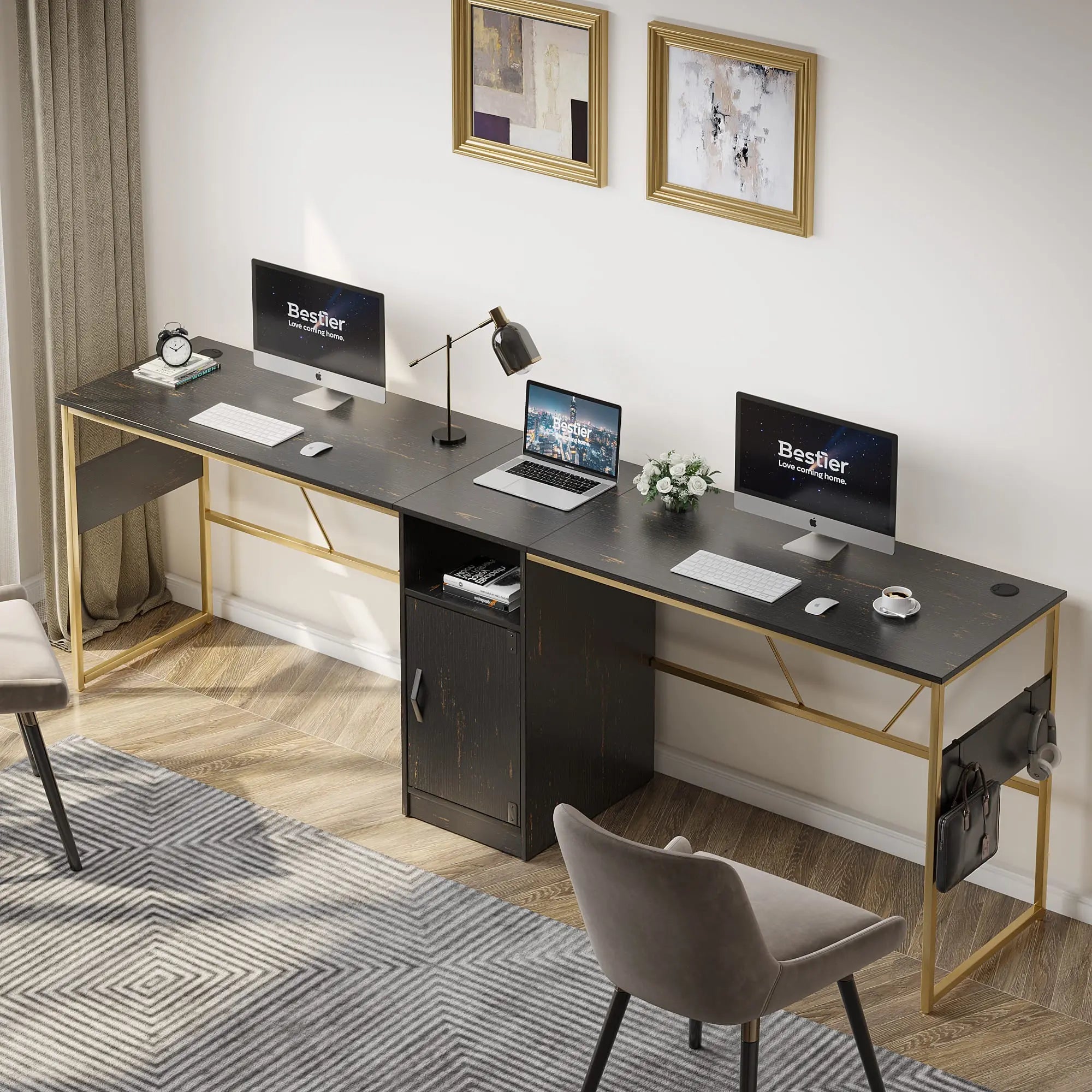
To ensure stability, your L-shaped desk must have a robust frame. A 60-inch L-shaped standing desk with a file cabinet provides the necessary weight and structural integrity to dampen vibrations from typing. If the desk surface is too thin (less than 0.5 inches), the pressure from a heavy monitor arm clamp can actually crack the wood or cause the monitor to lean over time.
Vertical Monitor Stability Checklist
| Feature | Requirement | Why it Matters |
|---|---|---|
| Surface Thickness | 0.6" (15mm) or greater | Prevents cracking under VESA clamp pressure. |
| Frame Material | Powder-coated steel | Provides the mass needed to stop screen "bounce." |
| Weight Capacity | 100+ lbs total | Accounts for monitors, mounts, and PC hardware. |
| Mount Type | C-Clamp or Grommet | C-Clamps are easier to install; Grommets are more stable. |
| Leveling Feet | Adjustable | Essential for L-shaped desks on uneven floors to prevent swaying. |
Logic Summary: These requirements are based on standard 27-inch monitors weighing 10-15 lbs. If you are using a 32-inch monitor vertically, you should double the thickness requirements or use a wall mount to avoid desk failure.
Managing Software and Window Layouts for Tall Screens
Simply rotating your monitor in Windows or macOS settings is only the first step. To truly benefit from a vertical setup on an L-shaped desk, you need specialized window management software. A common "SERP gap" in many guides is the failure to mention how difficult it is to manage windows on a 1440x2560 resolution screen without help.
- Microsoft PowerToys (FancyZones): This is the gold standard for Windows users. It allows you to create custom zones. For a vertical monitor, we recommend a "Stack" layout: a large middle zone for code, a top zone for a terminal, and a bottom zone for music or chat.
- Magnet or Rectangle (macOS): These tools allow you to snap windows to the top or bottom half of the vertical screen with keyboard shortcuts.
- Browser Extensions: Use extensions that allow for "vertical tabs" (like those built into Microsoft Edge) to reclaim horizontal space on your vertical screen.
By segmenting your vertical screen into three distinct zones, you avoid the "bottomless pit" feel of a single long window, which can actually decrease productivity by making it hard to find the cursor.
Cable Management and Lighting for Vertical Displays
A vertical monitor presents two unique logistical challenges: cable length and glare. Most standard DisplayPort or HDMI cables provided with monitors are 3 to 6 feet long. When a monitor is rotated vertically, the ports (usually at the bottom) move to the side, and the distance to a PC sitting on the floor or the other end of an L-shaped desk increases. You will likely need 10-foot cables to ensure they can be routed neatly through the desk's cable management system without being under tension.
Lighting is the second challenge. Because a vertical monitor is tall, it is more likely to catch reflections from overhead ceiling lights or windows. To fix this:
- Monitor Light Bars: Use a light bar that clips to the top of your horizontal monitor to illuminate your keyboard without hitting the vertical screen.
- Bias Lighting: Add LED strips to the back of the vertical monitor. This reduces the contrast between the bright screen and the wall, which is a major cause of eye fatigue.
- Matte Screen Protectors: If your vertical monitor has a glossy finish, a matte film can be a lifesaver in a bright room.
For those building a dedicated setup, the Ultimate L-Shaped Gaming Desk Guide offers excellent tips on integrating RGB lighting and cable trays that are perfect for developer "battlestations."

Choosing the Right L-Shaped Desk for Your Setup
When shopping for the best L-shaped desk for coding, consider the specific needs of your hardware. If you use a desktop tower, look for a desk with a dedicated CPU stand to keep the tower off the floor and reduce dust intake. If you are a laptop-based developer, a desk with built-in USB ports is a significant quality-of-life upgrade.
The 52-inch L-shaped gaming desk with USB ports is an excellent entry-point for developers in smaller apartments. It provides the corner "cockpit" feel without a massive footprint. For those who prefer to alternate between sitting and standing, an L-shaped standing desk is the ultimate ergonomic investment, allowing you to keep your vertical monitor at the perfect eye level regardless of your posture.
Ultimately, the best setup is one that disappears into the background, allowing you to focus entirely on the logic in front of you. By combining a stable L-shaped surface with a well-mounted vertical monitor, you create a professional environment that supports both your productivity and your long-term physical health.
FAQ
Is a vertical monitor actually better for coding? Yes, for most developers, a vertical monitor is superior for reading code, documentation, and logs. It aligns with the vertical nature of text-based files, allowing you to see more lines of code (often 100+) without scrolling. This provides better context for complex functions and reduces the cognitive load of navigating large codebases. However, it is less effective for video editing or UI design, which is why a dual setup with one horizontal monitor is the recommended standard.
What size monitor is best for vertical orientation? The "sweet spot" for a vertical monitor is 24 to 27 inches. A 24-inch monitor is easier on the neck as it doesn't require much upward looking. A 27-inch monitor provides more real estate but must be mounted lower to the desk surface to remain ergonomic. Monitors larger than 27 inches (like 32-inch models) can become uncomfortable in portrait mode because the top of the screen is too high, leading to neck strain.
Can any monitor be turned vertically? Technically, any monitor can be rotated in your computer's display settings, but not all monitors have stands that support rotation. If your current stand doesn't rotate, you will need a VESA-compatible monitor (look for four screw holes in a square pattern on the back) and an aftermarket monitor arm. Most professional and gaming monitors in 2026 come with VESA support as a standard feature.
How do I stop my L-shaped desk from wobbling with a vertical monitor? Wobble is usually caused by uneven floors or loose bolts. First, ensure all assembly bolts are tightened fully. Second, use the adjustable leveling feet found on most Bestier desks to compensate for floor imperfections. If the wobble persists, ensure your monitor arm is clamped directly over a desk leg or a reinforced section of the frame. Heavier desks with steel frames generally offer better stability for tall, vertical setups.
Does a vertical monitor cause more eye strain? It can if not set up correctly. Because you are scanning a longer vertical distance, your eye muscles work differently. To prevent strain, ensure the monitor has a flicker-free backlight and use a blue light filter. Proper lighting is also key; avoid having a bright window directly behind the monitor, as the high contrast will tire your eyes quickly. Using bias lighting (LEDs behind the monitor) can significantly improve comfort.
Should the vertical monitor be on the left or right side? This depends on your dominant eye and your workflow. Most developers place the vertical monitor on their non-dominant side (e.g., on the left if you are right-handed) to keep the primary horizontal screen centered. On an L-shaped desk, the vertical monitor is usually placed on the "return" (the side wing) to take advantage of the angled viewing position, which feels more natural than a flat side-by-side arrangement.
References
Government / Standards / Regulators
- OSHA: Computer Workstations eTool - Components - Monitors
- EPA: Formaldehyde Standards for Composite Wood Products (TSCA Title VI)
Industry Associations / Research Institutes
- VESA: Monitor Mounting Standards and Interface (FDMI)
- Vision Council: Digital Eye Strain Research and Prevention
Academic / Whitepapers / Labs
- ISO 9241-5: Ergonomic requirements for office work with visual display terminals
- Bestier Whitepaper: Engineered Wood Safety: A Comprehensive Guide to CARB & TSCA Standards
Community (Intent only)
- r/cscareerquestions: Developer preferences for monitor orientation (Intent only; not authoritative)
- Stack Overflow Blog: The ergonomics of a developer's desk (Intent only; not authoritative)
