

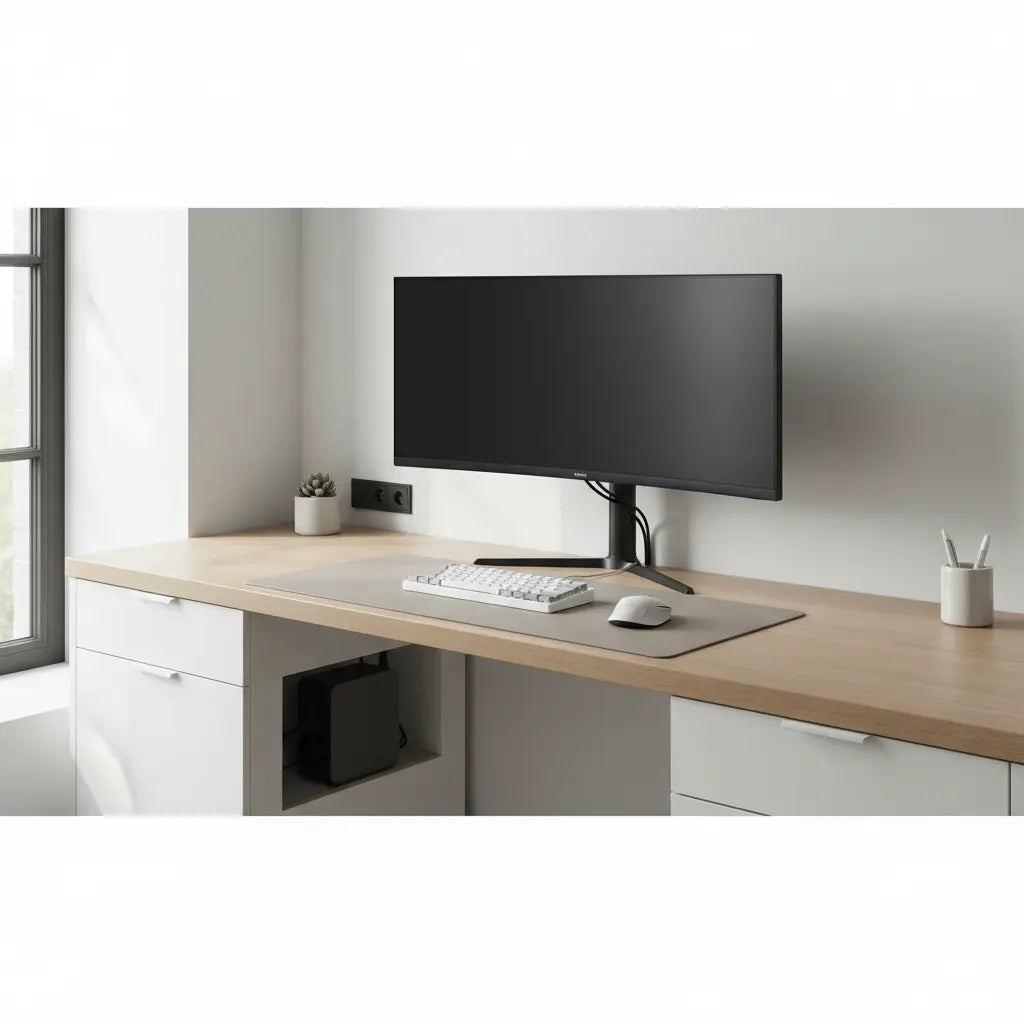
Why Cable Clutter Matters More Than You Think
Loose cords around a workstation are more than just an eyesore; they create daily friction that impacts your productivity and safety. Tangled wires underfoot are notorious trip hazards and can lead to accidental disconnections during a critical gaming match or a high-stakes video call. Furthermore, for those using height-adjustable desks, poorly managed cables can snag on the frame, potentially damaging your ports or the cables themselves.
While we often focus on the "clean look," organized equipment layout is a core principle of a functional workspace. Resources like the LBL sit-stand desk wire management guide point out that proper routing ensures your equipment remains accessible and safe to operate. In compact home offices or gaming "battlestations," visible wire nests also make a room feel smaller and more chaotic, adding unnecessary mental load to your workday.
How Desks with Hidden Cable Management Actually Work
The most effective "clean" desks don't just hide wires; they provide a dedicated infrastructure for them. This usually involves a combination of three key features:
- Surface Grommets and Cutouts: These are the entry points. Positioned at the rear or corners of the desk, they allow monitor and peripheral cables to drop straight down rather than draping over the edge.
- Under-Desk Channels and Trays: This is where the "magic" happens. A high-quality desk should feature a channel at least 2 to 3 inches deep. This depth is crucial because it needs to house not just thin wires, but also the bulky "power bricks" associated with laptops and high-end monitors.
- Integrated Power Modules: By building AC outlets and USB ports directly into the desk frame, you reduce the "cable run" distance. Instead of ten wires reaching for a floor strip, ten wires reach for the desk's spine, and only one main power cord goes to the wall.

Pro Tip on Bend Radius: When routing cables through these channels, avoid tight 90-degree bends. A common mistake is "stuffing" cables into corners, which can cause internal wire fatigue over time. Aim for a gentle curve (a "bend radius" of at least an inch) to ensure long-term cable health.
Built-in Power Strips and USB Ports: Convenience vs. Trade-offs
Integrating power directly into the furniture is a game-changer for multi-device users. It eliminates the "octopus" of wires crawling up from the floor. However, it’s important to match the desk’s capacity to your gear.
- Power Rating: For a setup involving a gaming PC, dual monitors, and studio lighting, look for integrated strips rated for at least 1500W. This provides a safe buffer for high-draw components.
- USB Standards: Modern setups benefit from a mix of USB-A and USB-C ports. While built-in ports are convenient for charging phones or headsets, we recommend using the direct motherboard ports on your PC for high-speed data transfers (like external SSDs) to ensure maximum performance.
- Thermal Safety: Power bricks generate heat. If your desk features an enclosed cable compartment, ensure it has ventilation slots. In our experience, an open-mesh tray or a ventilated metal channel is superior for heat dissipation compared to a fully sealed wooden box.
Our related deep dive on Hidden Power Strip Desks: Best Setups for Clean Cable Management explores these safety considerations and current workstation trends in more detail.
When Built-in Cable Management Is Worth the Investment
Is it worth the premium? The answer depends on your "device density." We generally find that integrated features deliver the best ROI in the following scenarios:
- The Multi-Monitor Pro: If you run two or more monitors, the sheer volume of DisplayPort and power cables makes manual management a nightmare.
- The Compact Workspace: In rooms under 100 square feet, floor space is at a premium. Getting the power strip off the floor makes the room feel significantly larger and easier to clean.
- The "Permanent" Setup: If you don't plan on moving your desk every few months, the time spent "weaving" cables into a built-in system pays off in years of clutter-free use.
The chart below provides a heuristic guide to help you decide based on your specific needs.
Illustrative Decision Guide: When Built-in Power and Hidden Cable Management Are Worth It
Illustrative Decision Guide
View chart data
| Category | Built-in power/cable management fit score | Standard desk fit score |
|---|---|---|
| 1-2 devices, >=100 sqft, flexible layout | 2.0 | 8.0 |
| 3-4 devices, >=100 sqft, mixed setup | 4.0 | 7.0 |
| 4+ devices, <100 sqft, fixed setup | 9.0 | 3.0 |
| 4+ devices, <100 sqft, frequent layout changes | 7.0 | 5.0 |
Illustrative heuristic built from the provided scenario matrix: built-in power and hidden cable management is favored when device count is 4+, rooms are under 100 sqft, and the setup is fixed. Official ergonomics sources from LBL, PennEHRS, USDA, and K-State are used only as qualitative support for clutter reduction and safety; scores are bounded planning estimates, not measured data.
Practical Features That Deliver Real Value
When shopping for a desk, don't just look for the word "management." Look for these specific design wins:
- Reusable Fasteners: Look for desks that include or accommodate Velcro ties rather than plastic zip ties. You will want to add a new peripheral eventually, and cutting zip ties near expensive cables is a recipe for disaster.
- Offset Grommets: Grommets located directly behind where a monitor arm clamps are often blocked. Look for desks with multiple entry points so you have options.
- Cable "Slack" Space: If you are buying a standing desk, the management system must allow for enough slack so that cables don't pull tight when the desk reaches its maximum height.
- Maintenance Access: Can you reach the power strip without crawling under the desk and unscrewing a panel? Flip-top compartments or magnetic covers are preferred for easy access.
For more on these strategies, see our guide on Mastering Desk Wire Routing: The Complete Cable Management Guide. If you're in a rental and can't modify your furniture, check out No-Drill Cable Management: Hiding Wires in Renter-Friendly Setups.

Actionable Checklist for a Multi-Device Setup
To get that "Instagram-ready" look, follow this sequence:
- The Inventory: Lay out every device. Note which ones have "wall warts" (bulky plugs) that might block adjacent outlets.
- The "Dry Run": Place your monitors and PC first. Route the thickest cables (power and HDMI/DisplayPort) through the channels first, as they are the least flexible.
- Group by Function: Keep "permanent" cables (monitors, PC power) bundled together. Keep "temporary" cables (phone chargers, mouse cables) in a separate, more accessible path.
- Label Both Ends: Use a simple label maker or tape to mark which cable belongs to which device. You’ll thank yourself six months from now when you need to swap a monitor.
- The One-Week Test: Don't use permanent ties yet. Use the setup for a week. You’ll likely find that a keyboard cable needs more slack or a charger is in the wrong spot. Refine the routing then secure it.
- Check the Load: Ensure your total wattage doesn't exceed the desk's rating. For heavy RGB and multi-GPU setups, this is a critical safety step.
Gamers can find specialized tips in The Complete Masterclass in Gaming Desk Cable Management.
Choosing the Right Desk for Your Clean Setup
If you're ready to move away from the "cable spaghetti" lifestyle, selecting a desk with these features built-in is the most efficient path.
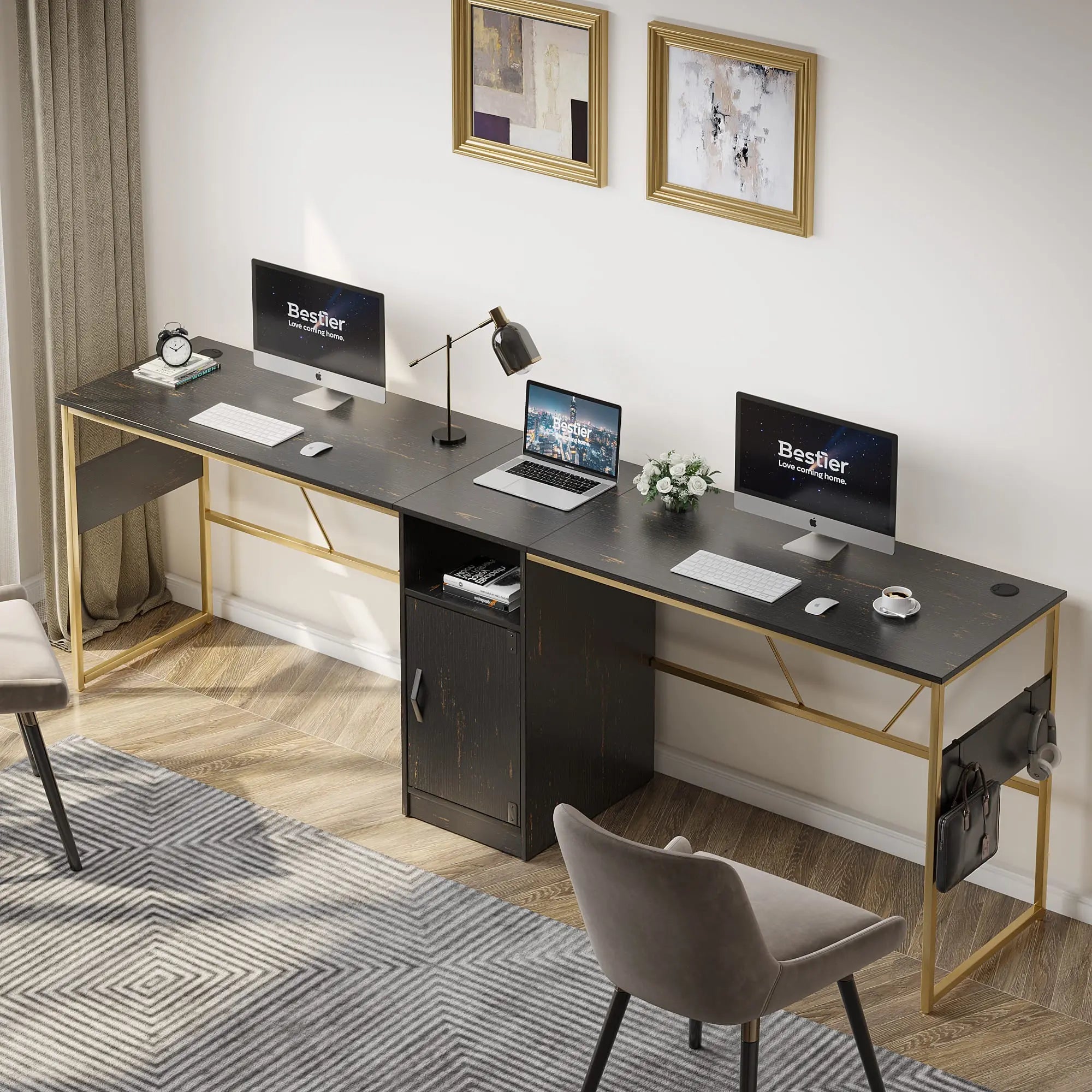
For smaller rooms, the Bestier 44 Inch Gaming Desk with Power Outlets offers a compact footprint with integrated charging. If you need more real estate for a dual-monitor setup, the Bestier 42" Reversible L-Shaped Gaming Desk or the massive 71.5 inch LED Computer Desk provide the channels and outlets necessary to hide heavy tech loads.
For those who want a futuristic aesthetic, the 57-inch L-shaped Gaming Desk with RGB Music Sync Lights combines power management with immersive lighting. Alternatively, the Bestier 63 Inch LED Gaming Desk with Keyboard Tray helps clear the desktop surface entirely.
Explore the full range in the Bestier LED Gaming Desk or Bestier L Shaped Desk collections.
Safety and Long-Term Maintenance
A clean desk is a safer desk. By reducing clutter, you improve airflow and reduce dust buildup—two of the biggest enemies of electronics. While ergonomics resources from the USDA and Kansas State University emphasize that organization supports a better work environment, remember that cable management is just one part of the puzzle.
Disclaimer: This guide focuses on the practical and aesthetic aspects of cable management. It is not medical or professional ergonomic advice. Always ensure your power load is within the manufacturer's safety limits and consult a professional if you experience persistent physical discomfort at your workstation.
To maintain your setup, we recommend a "dust and check" every three months. Open your cable channels, blow out any dust with compressed air, and ensure no cables have become pinched or frayed. A little maintenance goes a long way in keeping your "secret" clean setup performing at its best.
