
Summary

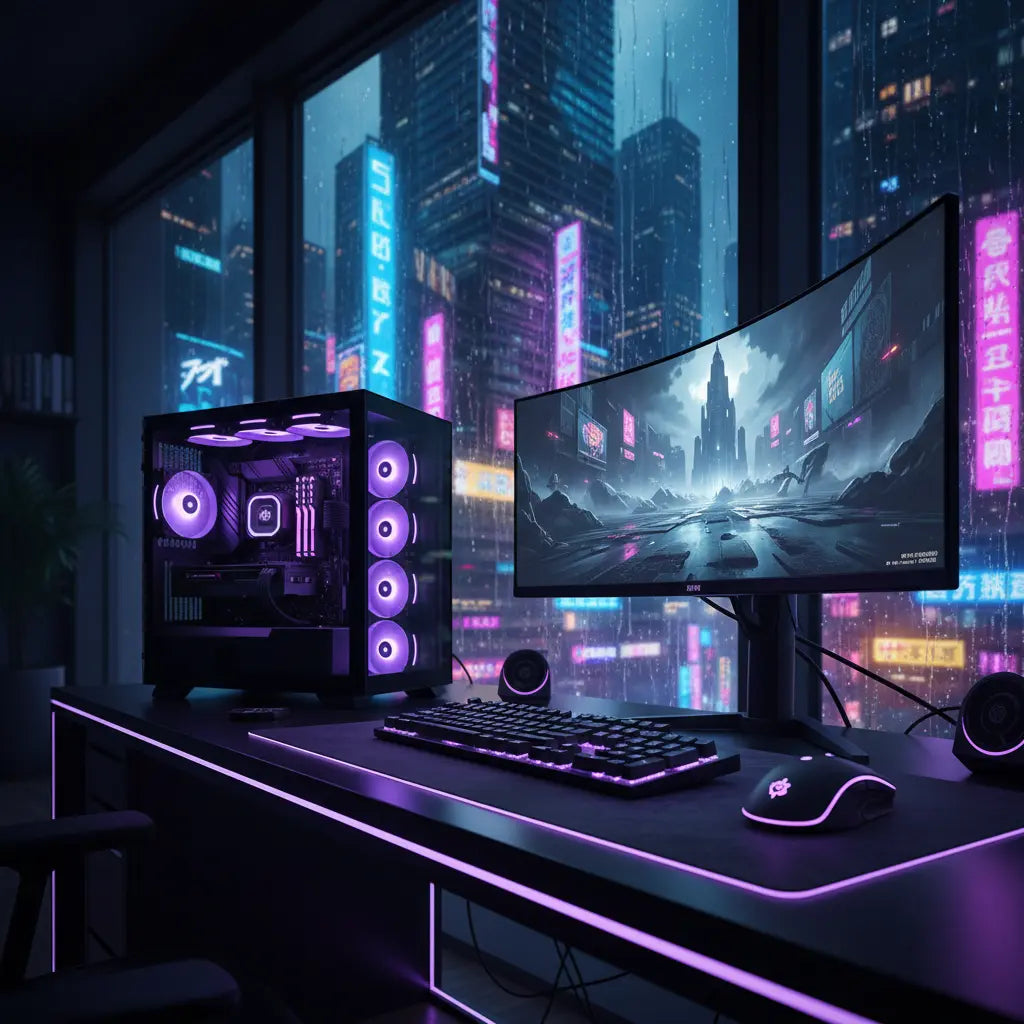
Syncing your desk RGB lighting with your gaming PC involves transitioning from standalone infrared (IR) remotes to integrated software or hardware controllers that unify your setup's aesthetic. By utilizing universal software solutions like SignalRGB or OpenRGB, or by physically connecting your desk's LED strips to your motherboard's 5V ARGB headers, you can achieve a cohesive "Cyberpunk" environment where lighting reacts to in-game events, system temperatures, or music. This integration not only enhances immersion but also centralizes control, allowing for sophisticated lighting profiles that were previously impossible with basic factory-installed controllers.
Key Takeaways
- Universal Software as the Bridge: In 2026, software solutions like SignalRGB and OpenRGB have become the versatile standard for bridging the gap between proprietary hardware ecosystems.
- Hardware Compatibility: Ensure your desk LED strips use the 5V 3-pin ARGB standard rather than the older 12V 4-pin RGB to avoid damaging your motherboard or controller.
- Power Budgeting is Critical: Long LED runs can exceed the power limits of a single motherboard header; using a SATA-powered RGB hub is recommended for setups exceeding 60–100 LEDs.
- Safety and Compliance: When modifying your desk's electronics, prioritize components that meet UL or CE standards and ensure your desk material complies with safety regulations like CARB Phase 2.
The Evolution of Gaming Desk RGB: From Remote Control to System Sync
The journey from a simple "glow under the desk" to a fully reactive "battlestation" has seen a significant shift in consumer expectations. In the early days of LED-integrated furniture, users were often limited to a plastic 24-button remote that offered a handful of static colors and jarring "strobe" effects. Today, the "Smart-Home Integration Pivot" has pushed gaming setups toward a more sophisticated, unified ecosystem. Enthusiasts are no longer satisfied with a desk that doesn't "talk" to their PC.
Integrating your desk lighting into your PC's ecosystem allows for a level of immersion that a standalone remote cannot provide. Imagine your entire room pulsing red when your health is low in an FPS, or a soft amber glow that mimics the sunset in an open-world RPG. This level of coordination requires moving beyond the commodity trap of basic LEDs and into the realm of addressable RGB (ARGB) and cross-platform synchronization.
When designing your gaming battlestation setup, the desk serves as the foundation. Beyond aesthetics, the physical safety of your desk is paramount. For instance, high-quality desks are often constructed with materials that meet strict environmental standards. According to the authoritative guide on Engineered Wood Safety, which explores CARB Phase 2 and EPA TSCA Title VI standards, understanding these regulations is essential for maintaining indoor air quality in a space where you spend hours gaming.
Choosing Your Synchronization Method: Software vs. Hardware Solutions
There are two primary paths to achieving a synced setup: the software-only route and the hardware-integration route. Each has its own set of trade-offs regarding cost, complexity, and performance.
The Software-Only Approach (The Universal Bridge)
Software solutions like SignalRGB or OpenRGB work by "capturing" the lighting data from your PC and sending it to compatible devices. In 2026, these platforms have expanded their support to include many smart home hubs and third-party LED controllers. If your desk uses a USB-based controller or is compatible with ecosystems like Govee or Philips Hue, software is often the easiest way to sync your desk without opening your PC case.
The Hardware-Integration Approach (The Direct Link)
For the lowest latency and most robust connection, many gamers prefer a direct hardware link. This involves connecting the LED strips built into your LED gaming desk directly to your motherboard's ARGB headers or a dedicated internal lighting controller. This method treats your desk as just another "fan" or "strip" within your PC's lighting software (e.g., ASUS Aura Sync, MSI Mystic Light).
Logic Summary: The software approach is recommended for users who want to avoid hardware modifications. The hardware approach is best for enthusiasts seeking the lowest possible latency and a "set it and forget it" configuration.
Step-by-Step Guide: How to Connect Your Bestier Desk LEDs to Your PC
⚠️ Safety & Warranty Disclaimer: Modifying your desk's factory wiring or opening your PC case involves inherent risks, including electrical shock or hardware damage. Such modifications may void the warranty of both your desk and your motherboard. If you are uncomfortable with electrical work, we recommend using official plug-and-play USB controllers or consulting a professional.
If you are looking to build your custom gaming desk or upgrade an existing one, follow these steps to achieve a hardware-level sync.
- Identify the LED Type: Most modern gaming desks use 5V ARGB (Addressable RGB) strips, which have three pins. Older or cheaper models might use 12V RGB (4 pins). Warning: Connecting a 5V strip to a 12V header will permanently damage the LEDs.
- Locate Your Motherboard Headers: Check your motherboard manual for "ADDR_LED" or "JRAINBOW" headers. These are usually located at the top right or bottom edge of the board.
- Use an Extension Cable: Since your desk LEDs are outside the PC case, you will likely need a 3-pin ARGB extension cable. Route this cable through a PCI slot bracket or a dedicated cable pass-through.
- Connect to a Powered Hub: To avoid overdrawing power from your motherboard (see the Power Budget section below), connect the extension cable to a SATA-powered ARGB hub inside your PC.
- Configure the Software: Once connected, open your motherboard's lighting software. The desk LEDs should appear as an unconfigured strip. Set the "LED Count" to match the number of LEDs on your desk for accurate effects.

Proper cable management is essential here to prevent the extension cable from being snagged. Utilizing pro cable management tricks will ensure that your new lighting setup doesn't turn into a "spaghetti" mess of wires under your desk.
Managing the Power Budget: Avoiding Overload and Flicker
One of the most common mistakes in DIY desk lighting is ignoring the electrical limitations of motherboard headers. A standard ARGB header is typically rated for 3 Amps at 5 Volts (15 Watts). However, a high-density LED strip can draw significantly more than that over a long run.
Calculating Your Power Needs
Note on Estimation: The values below are based on a "worst-case" scenario for typical 5050 SMD LEDs (drawing ~60mA per LED at 100% brightness white). In real-world gaming scenarios with mixed colors, draw is often 30–50% lower. Always check your specific LED strip's datasheet for exact ratings.
| Number of LEDs | Estimated Peak Current (Amps) | Peak Power Consumption (Watts) | Recommended Connection |
|---|---|---|---|
| 30 | 1.8A | 9W | Direct Motherboard Header |
| 60 | 3.6A | 18W | Powered ARGB Hub (SATA) |
| 120+ | 7.2A+ | 36W+ | Dedicated External Power Supply |
Pro Tip: How to Measure and Identify Voltage Drop
If your desk lighting begins to flicker or shifts toward a yellowish/pinkish tint at the end of the strip, you are likely experiencing a voltage drop.
- The Test: Use a digital multimeter set to DC Voltage. Measure the voltage at the start of the strip (near the controller) and at the very end.
- The Threshold: If the voltage at the end is below 4.5V (for a 5V system), you will see color inaccuracy.
- The Fix: Inject power at both ends of the strip or reduce the brightness in software to lower the current draw.
Mitigating EMI and RFI in Long LED Cable Runs
A technical detail often overlooked is the impact of Electromagnetic Interference (EMI). Addressable LEDs use a high-frequency data signal. When you run long cables from your PC to your desk, these cables can act as antennas, picking up or radiating Radio Frequency Interference (RFI).
This interference can manifest as "ghosting" (LEDs flickering random colors) or even interfering with sensitive peripherals like wireless mice. To mitigate this:
- Use Shielded Cables: If your run exceeds 2 meters, use shielded 3-core wire for the data signal.
- Keep Data and Power Together: Avoid separating the data wire from the ground wire, as this creates a larger "loop area" for interference.
- Add a Resistor: Placing a 330-ohm to 470-ohm resistor on the data line near the controller can help "clean up" the signal and prevent data corruption.
Understanding how LED gaming desks boost immersion is only half the battle; ensuring that the technical implementation doesn't degrade your overall gaming experience is the hallmark of a professional setup.
Optimizing Latency for Real-Time Lighting Effects
For competitive gamers, even the lighting must be "fast." If your desk lighting lags behind your monitor's action, the effect can be distracting. Latency in RGB sync is usually caused by software overhead or "polling rate" limitations of the USB controller.
In 2026, the industry has moved toward hardware-accelerated lighting protocols. If you are using software like SignalRGB, ensure that "Hardware Acceleration" is enabled in the settings. For the fastest response, a direct motherboard connection using a protocol like SMBus is generally superior to USB-based external controllers.
Future-Proofing with Matter and Thread
While the gaming world still relies heavily on proprietary protocols, the 2026 landscape is seeing a slow but steady adoption of the Matter standard. Matter aims to provide a universal language for smart devices, potentially allowing different brands to communicate directly without middleman software.
When purchasing new lighting components, look for "Matter-over-Thread" compatibility. While it may not solve all sync issues today, it ensures that your setup will remain relevant as the smart home and gaming ecosystems continue to converge.
FAQ
Can I sync my desk RGB with my console (PS5/Xbox)? Direct synchronization with consoles is more limited than on PC. However, you can use "camera-based" systems (like Govee DreamView) that monitor screen colors or HDMI 2.1 sync boxes to coordinate lighting, though these can be expensive.
Is it safe to leave my desk RGB on 24/7? While LEDs have long lifespans (often 50,000+ hours), leaving them on 24/7 is not recommended due to potential heat buildup in the controller. It is best to sync your desk lighting with your PC's power state.
Will syncing my RGB lighting decrease my PC's gaming performance? Modern lighting software typically uses less than 1–2% of CPU resources. However, complex "screen mirroring" effects can have a measurable impact on frame rates on mid-range systems. If you notice a dip, try reducing the "sampling rate" in your software.
What is the difference between RGB and ARGB for a gaming desk? Standard RGB (12V) means every LED on the strip must be the same color. ARGB (5V Addressable RGB) allows you to control each individual LED independently for moving patterns and reactive effects.
How do I fix my desk LEDs if they are showing the wrong colors? This is often a "color order" issue (e.g., GRB vs. RGB). Most software allows you to "calibrate" the strip by identifying which color appears during a test. If colors are dim or yellow, it is likely a voltage drop issue.
References
Government / Standards / Regulators
- EPA TSCA Title VI - Formaldehyde Emission Standards
- California Air Resources Board (CARB) - Composite Wood Products
- Federal Communications Commission (FCC) - Part 15 Radio Frequency Devices
Platform Official Docs & Policies
- SignalRGB - Supported Devices and Integration Guide
- OpenRGB - Hardware Compatibility List
- Matter (Connectivity Standards Alliance) - Smart Home Specification
Industry Associations / Research Institutes
- IEEE - Standard for a Software Interface for Controlling RGB Lighting (Project P2858)
- VESA - DisplayHDR and Lighting Synchronization Standards
