

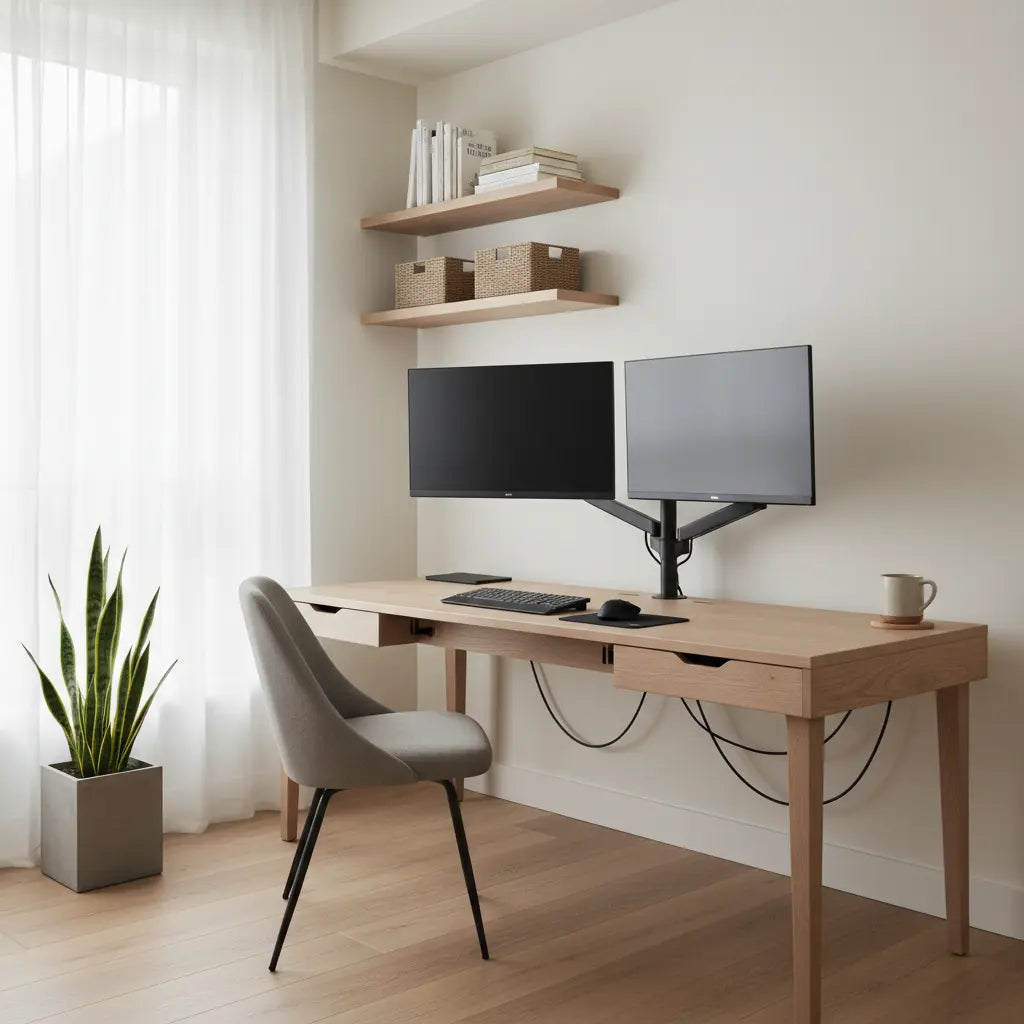
Cable clutter can turn even the best home office into a tangled mess that feels chaotic and harder to use. For renters who cannot drill into walls or furniture, effective no-drill cable management offers practical ways to route wires cleanly, hide power bricks, and maintain a tidy dual-monitor setup without permanent changes. The key is choosing reversible solutions that balance concealment with easy access and proper ventilation.

Why Cable Clutter Hits Renters Hard
Living in a rental apartment or small space often means dealing with limited desk real estate and strict lease rules against drilling or damaging surfaces. Dual-monitor workstations, charging docks, smart lighting, and multiple peripherals quickly multiply the number of cables and bulky power adapters. This not only looks messy but can reduce productivity and create trip hazards or ventilation issues around heat-generating equipment.
Renter-friendly cable management typically relies on removable organizers such as adhesive clips, under-desk trays, and routing along the underside of furniture rather than permanent installations. These approaches avoid permanent changes to walls or furniture, making them a good fit for most rental situations.
Common renter-friendly tools include adhesive cable clips, under-desk trays, and raceway-style covers. However, adhesive-based solutions can work well but fit depends on desk thickness, cable volume, and surface finish. Good cable management balances a clean look with easy access for unplugging, upgrades, and maintenance.
Common Myths About No-Drill Cable Management
Many people assume that any adhesive organizer will solve their cable problems permanently and safely. In reality, no-drill cable management tends to work best for lighter loads on smooth surfaces where you rarely need to reconfigure the setup. Frequent unplugging or bulky power bricks can turn a seemingly tidy solution into daily frustration.
Another myth is that tighter bundling always improves small-space setups. Crowded routing can actually reduce airflow around chargers and make maintenance harder. Keep power bricks accessible and leave room for airflow around charging equipment to prevent overheating concerns.
Practical Thresholds for Your Setup
Cable management needs scale with your equipment. As a practical rule of thumb, setups with fewer than 4-6 loose cables and one power brick can often get by with simple clips. Once you hit dual monitors, multiple docks, or more than two bulky adapters, a more structured system like a tray becomes more useful.
Here is a practical decision guide based on setup size and access needs. It shows relative suitability for common no-drill options across different clutter levels.
Practical Decision Guide: Best No-Drill Cable Management Fit by Desk Scenario
Heuristic suitability levels for renter-friendly no-drill options. High/Med/Low are practical decision cues, not measured performance.
View chart data
| Category | Adhesive Clips | Under-Desk Tray | Raceway Cover | Hooks |
|---|---|---|---|---|
| Light (<4 cables) | 3.0 | 1.0 | 2.0 | 2.0 |
| Moderate (4-7 cables) | 2.0 | 3.0 | 2.0 | 2.0 |
| Heavy (7+ cables or dual-monitor) | 1.0 | 3.0 | 2.0 | 2.0 |
Illustrative heuristic built from the provided threshold table, scenario matrix, and dont_buy_if guidance: suitability flips around 4-6 cables or 2+ power bricks; dual-monitor setups favor trays; frequent reconfiguration favors access over full hiding; adhesives are constrained by surface condition and reconfigurability. Scores use a 3-level practical scale only (Low=1, Med=2, High=3).
This heuristic is derived from common setup patterns and should be treated as a decision aid rather than lab-tested data. As this under-desk cable management guide explains, good routing prioritizes both clean appearance and serviceability.

Step-by-Step No-Drill Cable Management Setup
Start by auditing your current cables. Group similar ones together and label them if needed for future changes. Measure your desk underside and available space to determine the best routing paths.
-
Clean surfaces thoroughly – Adhesive products perform best on dust-free, smooth surfaces. Wipe down the desk underside and any mounting areas.
-
Plan your routes – Group monitor cables, power cords, and charging wires separately. Keep power bricks away from direct heat sources and ensure they have breathing room, as noted in practical renter guides.
-
Install base organizers – Use adhesive cable clips to guide wires along the desk edge or back. For heavier loads, consider an under-desk tray that clamps or adheres without drilling.
-
Hide bulky components – Tuck power bricks into baskets or behind furniture legs where they remain accessible but out of sight. Raceway covers can conceal runs along walls without permanent attachment.
-
Secure and test – Bundle excess cable with reusable ties, then test all devices. Make sure nothing blocks ports or creates strain.
A no-drill setup can group device cables, route them under the desk, and use clips or trays instead of drilling into walls or furniture. This approach works particularly well in rental apartment home offices and small bedroom corner desks.
Choosing the Right No-Drill System for Your Desk
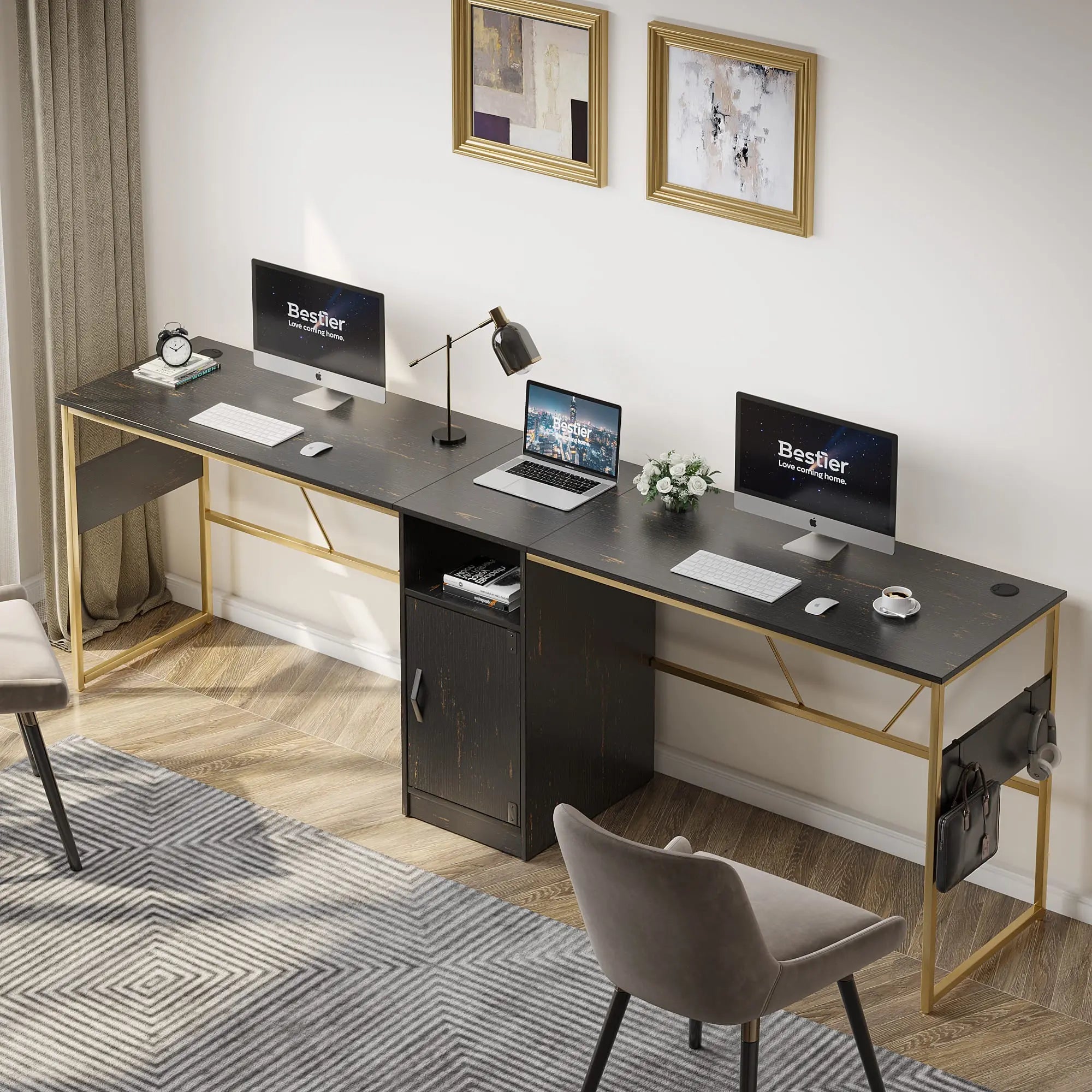
Compare options using three main factors: attachment method (adhesive vs. clamp), post-install access, and compatibility with your desk thickness. For dual-monitor desks with heavy cable loads, under-desk trays often provide better long-term results than clips alone because they handle bulk more effectively.
Adhesive clips offer quick installation for light setups but may require careful surface preparation and can be less ideal if you frequently rearrange equipment. Under-desk trays provide more capacity and easier maintenance, while raceway covers deliver a streamlined look for visible runs.
Don't buy purely adhesive solutions if you regularly swap devices, need to hide multiple power bricks, or have textured/uncertain surfaces. In those cases, opt for trays or modular hooks that allow easier reconfiguration.
For Bestier desk owners, many of these techniques pair well with built-in features. Check out our 5 Cable Management Hacks for LED Gaming Desks for model-specific tips.
Renter-Friendly Product Ideas and Alternatives
Look for removable adhesive clips rated for your expected load, under-desk cable trays with strong but gentle attachment, and fabric or plastic cable sleeves for bundling. Prioritize products that clearly state easy removal without residue.
If your desk has power outlets built in, routing becomes simpler. The Bestier 42" Reversible L-Shaped Gaming Desk with Power Outlets includes integrated charging and multiple routing options that complement no-drill accessories.
Additional reading on similar setups includes Pro Cable Management Tricks for a Clean Gaming Setup and The Ultimate Creator Studio: Essential Desk Features for Streamers.
Safety and Maintenance Tips
Always ensure power bricks have adequate ventilation to avoid heat buildup. Check adhesive mounts every few months for loosening, especially in humid environments. When moving out, remove organizers gently and clean any residue promptly to protect your security deposit.
This article discusses comfort and setup advice only. It does not constitute professional advice regarding electrical safety or property modifications. If you have concerns about wiring, heat, or persistent setup issues, consult qualified professionals.
Final Checklist Before You Start
- Count your cables and adapters to determine your clutter level
- Test adhesive on a small inconspicuous area first
- Plan routes that keep power components accessible
- Choose solutions that match your expected frequency of changes
- Leave slack for easy device swapping
By following these renter-friendly strategies, you can achieve a clean, professional-looking workspace that supports productivity without risking your lease. The best system is one that matches your specific desk, equipment load, and how often you reconfigure.
Small changes in routing and organization can make a big difference in both aesthetics and daily usability. Start simple with clips and a tray, then refine based on what actually works in your space.
References
