
Summary
Syncing your Bestier gaming desk with your PC's lighting ecosystem is entirely achievable in 2026 using open-source tools like OpenRGB and SignalRGB. By transitioning from the stock RF or USB controller to a direct 5V Addressable RGB (ARGB) connection via a motherboard header or a dedicated USB controller, you can unify your furniture's glow with your peripherals and internal components. This guide provides the technical roadmap to bypass proprietary limitations, ensuring a seamless, low-latency lighting experience that responds to in-game events and system telemetry.
Key takeaways
- Hardware Bridge Required: Most Bestier desks use a standalone USB controller; syncing requires connecting the LED strip to a PC-compatible ARGB controller or motherboard header.
- Software Versatility: SignalRGB offers superior "Canvas" mapping for spatial synchronization, while OpenRGB provides a lightweight, privacy-focused alternative with broad plugin support.
- Power Management: Always verify the total LED count and current draw (Amps) to avoid overloading motherboard headers; use a powered SATA hub for large desk setups.
- Safety First: Beyond lighting, ensure your setup maintains structural integrity and adheres to CARB and TSCA safety standards for engineered wood desks to maintain a healthy indoor environment.
Understanding the Bestier LED Controller Ecosystem
Bestier furniture is celebrated for its balance of aesthetics and affordability, often featuring integrated LED strips that operate via a simple USB-powered controller and an RF remote. While these stock controllers are excellent for standalone use, they operate on a closed loop, meaning they cannot "talk" to your PC's software. To achieve a unified look, we must look at the underlying hardware: the LED strips themselves.
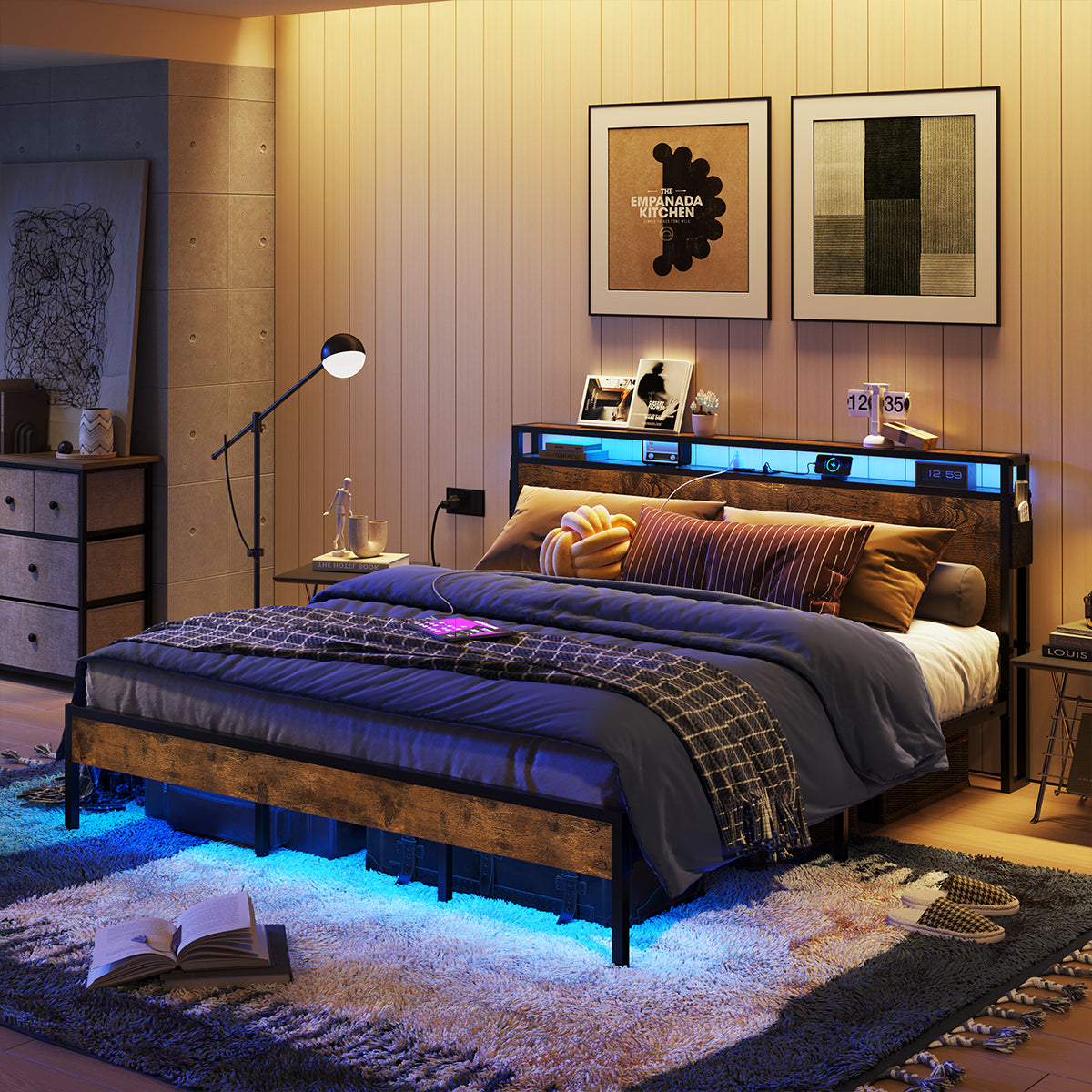
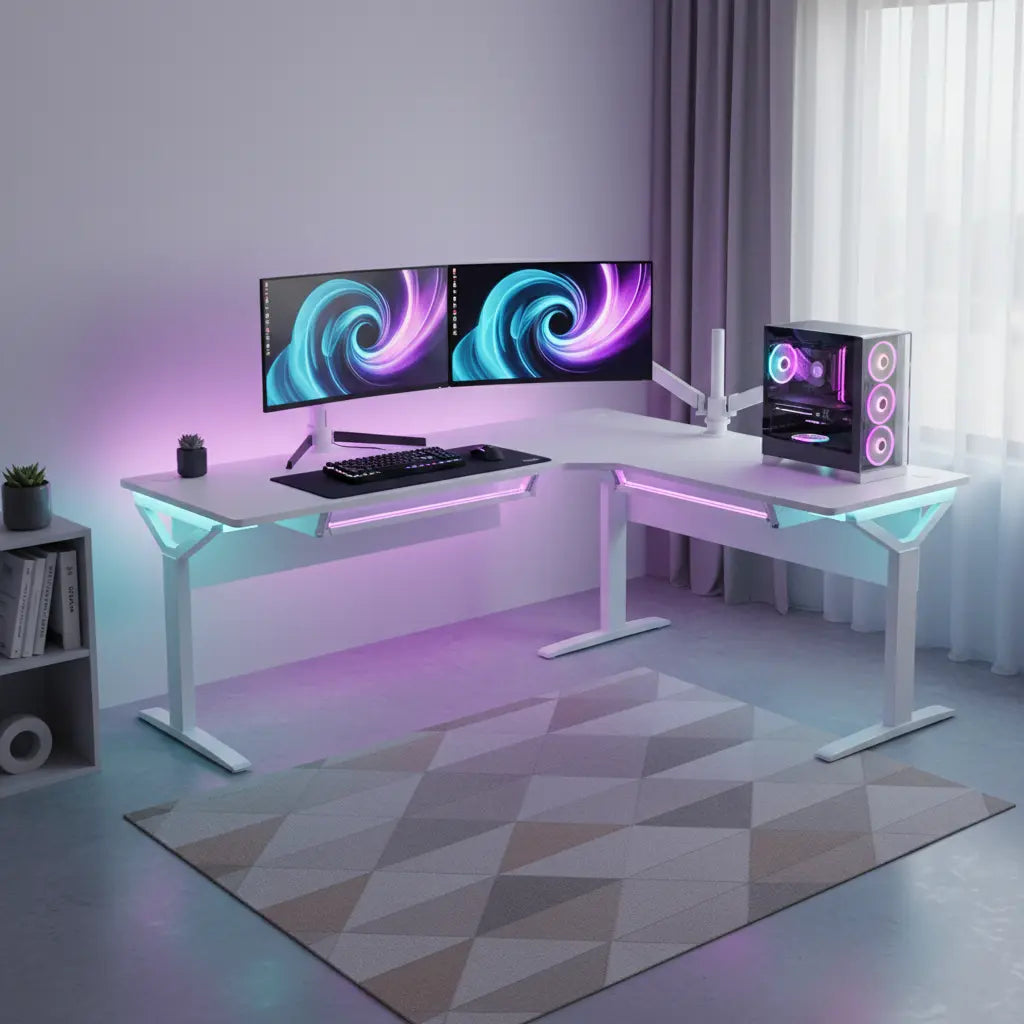
Most Bestier models, such as the 48-inch L-shaped LED gaming desk, utilize 5V WS2812B or similar addressable LED strips. These strips have three wires: 5V Power, Data, and Ground. The "Addressable" part is key—it means each individual LED can be controlled independently, which is exactly what SignalRGB and OpenRGB need to create complex gradients and reactive effects.
Logic Summary: We assume the desk uses standard 5V ARGB strips. If your desk uses a 4-pin 12V (Non-Addressable) system, the syncing process is different and requires a 12V RGB header. This guide focuses on the more common 5V ARGB integration found in modern gaming furniture.
Hardware Requirements: Bridging the Gap Between Furniture and PC
To get your desk lights appearing in your PC software, you need a physical bridge. You cannot simply plug the stock USB cable into your PC and expect SignalRGB to find it; the stock controller lacks the necessary data interface.
Option 1: The Motherboard Header (Budget Friendly)
If your motherboard has a 3-pin 5V ARGB header (often labeled ADDR_LED or JRAINBOW), you can connect your desk strip directly to it. You will likely need a 3-pin ARGB extension cable to reach from the desk to the back of your PC case.
Option 2: Dedicated USB ARGB Controller (Recommended)
For the most stable connection and best software compatibility, a dedicated controller like the Razer Chroma Addressable RGB Controller or a Corsair Commander Pro (with adapters) is ideal. These devices connect to an internal USB 2.0 header and provide multiple ports for your desk and peripherals. This is a core part of basic RGB synchronization methods for gaming PCs.
Necessary Tools and Adapters
- 3-Pin ARGB Extension Cable: To bridge the distance between the desk and the PC.
- SATA Power Splitter: If using a powered hub to ensure the desk doesn't pull too much current from the motherboard.
- Cable Ties: Essential for essential cable management techniques for RGB gaming setups to prevent "spaghetti code" in your physical wiring.

Step-by-Step: Syncing with SignalRGB
SignalRGB has become the gold standard for "all-in-one" lighting control because of its spatial mapping. It treats your entire room as a 2D canvas.
- Hardware Connection: Connect your Bestier LED strip to your chosen controller (e.g., Razer Chroma Controller).
- Device Detection: Open SignalRGB. Navigate to the "Devices" tab. Your controller should appear here.
- Component Configuration: Click on the controller and select "Add Component." Choose "Custom LED Strip."
- LED Count: Count the number of LEDs on your Bestier desk. Enter this number into SignalRGB. This ensures the software knows exactly how long the "light bar" is.
- Layout Mapping: This is the magic step. Go to the "Layouts" tab. You will see a grid. Move the "Desk Strip" component to its physical location relative to your monitors. If the strip runs along the back of the desk, place it just below or behind your monitor icons.
By following this process, when a flashbang goes off in a game, the light will travel from the center of your screen out to the edges of your desk, creating an immersive "Ambilight" effect.
Step-by-Step: Syncing with OpenRGB
OpenRGB is the preferred choice for users who want a lightweight, open-source solution without the "bloat" of traditional peripheral software. It is particularly powerful for those mixing brands (e.g., a Bestier desk with a Logitech mouse and an ASUS motherboard).
- Install OpenRGB: Download the latest version (v0.9 or higher is recommended for 2026 stability).
- Scan for Devices: Run the software as Administrator to ensure it can access the SMBus/USB controllers.
- Identify the Controller: Look for your motherboard or USB controller in the list.
- Resize the Header: Right-click the header where the desk is connected and select "Edit Segments" or "Resize." Enter the LED count of your desk strip.
- Apply Effects: Use the "Effects Plugin" to create custom patterns. OpenRGB allows for granular control, including the ability to sync with music via the E1.31 protocol or specialized visualizers.
For those looking for even broader integration, such as compatibility with Govee and Philips Hue RGB ecosystems, OpenRGB can often act as the bridge between these disparate platforms.
Advanced Optimization: Layouts and Virtual Mapping
One of the most common mistakes in desk syncing is ignoring the "direction" of the LEDs. Most strips have a specific data flow (indicated by arrows on the strip).
The "Virtual LED" Technique
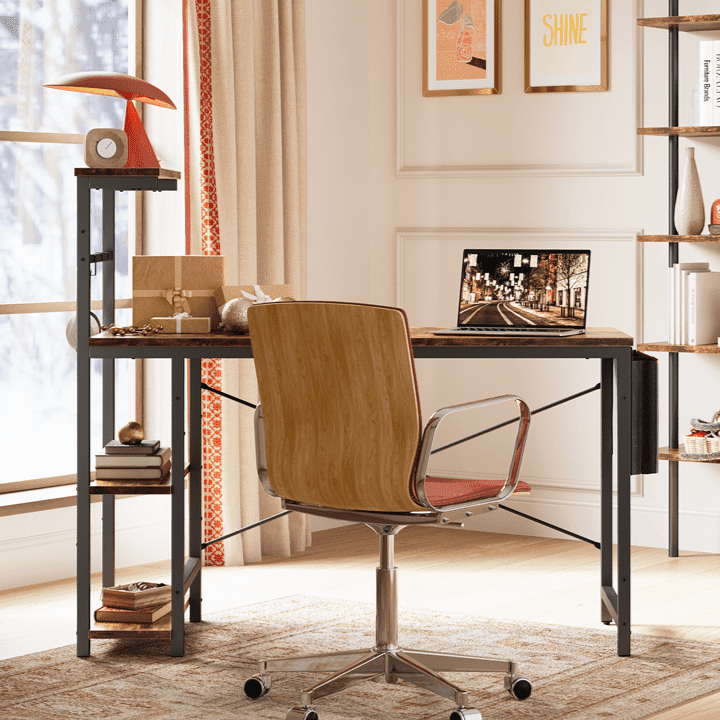
In SignalRGB, if your desk has multiple strips (e.g., one on the monitor riser and one on the main surface), you should map them as separate segments. This is common in feature-rich L-shaped gaming desks with integrated charging ports, where lighting might be split across different levels.
| Feature | SignalRGB | OpenRGB |
|---|---|---|
| Ease of Use | High (Visual Canvas) | Moderate (List-based) |
| Resource Usage | Moderate to High | Very Low |
| Game Integration | Native (100+ Games) | Via Plugins |
| Hardware Support | Extensive | Universal (Open Source) |
| Cost | Free (Pro version available) | Completely Free |
Handling Proprietary Protocols
Some older Bestier models might use a 4-pin connector that looks like standard RGB but has a different pinout (e.g., BRG instead of RGB). If your colors look "swapped" (you click Red but get Blue), both SignalRGB and OpenRGB allow you to "Reorder Color Channels" in the device settings.

Safety and Stability: Power Draw and Material Integrity
When you start daisy-chaining LED strips across a large desk, you must consider the power limits of your motherboard. A standard ARGB header is typically rated for 3 Amps (at 5V), which supports roughly 60-80 LEDs at full white brightness.
Power Calculation Heuristic
- Rule of Thumb: Each WS2812B LED draws approximately 60mA at full brightness (White).
- Calculation: 100 LEDs x 60mA = 6,000mA (6 Amps).
- Solution: If your desk has more than 60 LEDs, use a Powered ARGB Hub that takes power directly from your PC's Power Supply (SATA connector) rather than the motherboard header.
Furthermore, while we focus on the electronics, the "foundation" matters. Bestier desks are engineered for safety, but modifying the wiring should be done carefully to avoid heat buildup against the wood. Our research into CARB and TSCA safety standards highlights that while these materials are highly stable, excessive heat from poorly managed electronics can, in extreme cases, affect the longevity of the finish. Always ensure your LED strips have proper ventilation and aren't "sandwiched" between tight surfaces.
FAQ
Can I sync my Bestier desk without opening my PC case? Yes, you can use an external USB ARGB controller that plugs into a standard USB-A port on the back of your PC. However, you will still need to run a cable from the desk's LED strip to that controller. This is often the easiest path for those who are uncomfortable with internal PC modifications or are using a gaming laptop.
Will using SignalRGB or OpenRGB void my Bestier warranty? Generally, replacing the stock LED controller does not void the warranty on the desk's structure (the wood and metal frame). However, it may void the warranty specifically for the "electronic components" (the original LED strip and remote). We recommend keeping the original controller in a safe place so you can swap it back if you ever need to troubleshoot the hardware.
Why are my desk lights flickering when I sync them? Flickering is usually a sign of either a loose data connection or insufficient power. Ensure your 3-pin connectors are seated firmly (use electrical tape to secure them if necessary). If the flickering only happens at high brightness, it is almost certainly a power draw issue, and you should switch to a powered SATA ARGB hub.
Can I use both SignalRGB and OpenRGB at the same time? No, this is highly discouraged. Both programs will fight for control of the same USB/SMBus controllers, leading to flickering, software crashes, or "zombie" lighting states where the LEDs freeze. Choose one ecosystem and stick with it for the best stability.
Does SignalRGB support the stock Bestier remote? No. Once you bypass the stock controller to sync with your PC, the original RF remote will no longer function. All control will move to your PC software. If you want physical control, many users map "Lighting Profiles" to macro keys on their keyboards or use a Stream Deck.
Is it possible to sync the desk with my console (PS5/Xbox)? Direct software sync like SignalRGB is not available on consoles. However, you can use a "Video Sync Box" (similar to what is used for TVs) that intercepts the HDMI signal and translates it to the desk's LEDs. Alternatively, some Bestier desks are compatible with Govee systems, which can use a camera to "see" the screen and sync the desk accordingly.
References
Government / Standards / Regulators
- EPA TSCA Title VI: Formaldehyde Standards for Composite Wood Products
- California Air Resources Board (CARB): Phase 2 Composite Wood Regulation
Platform Official Docs & Policies
- SignalRGB: Supported Devices and Integration Documentation
- OpenRGB: Official GitLab Repository and Hardware Compatibility List
Industry Associations & Research
Community (Intent Discovery Only)
- r/SignalRGB: User-submitted layouts for furniture integration (Intent only; not authoritative)
- OpenRGB Discord: Community plugins for custom LED controllers (Intent only; not authoritative)
